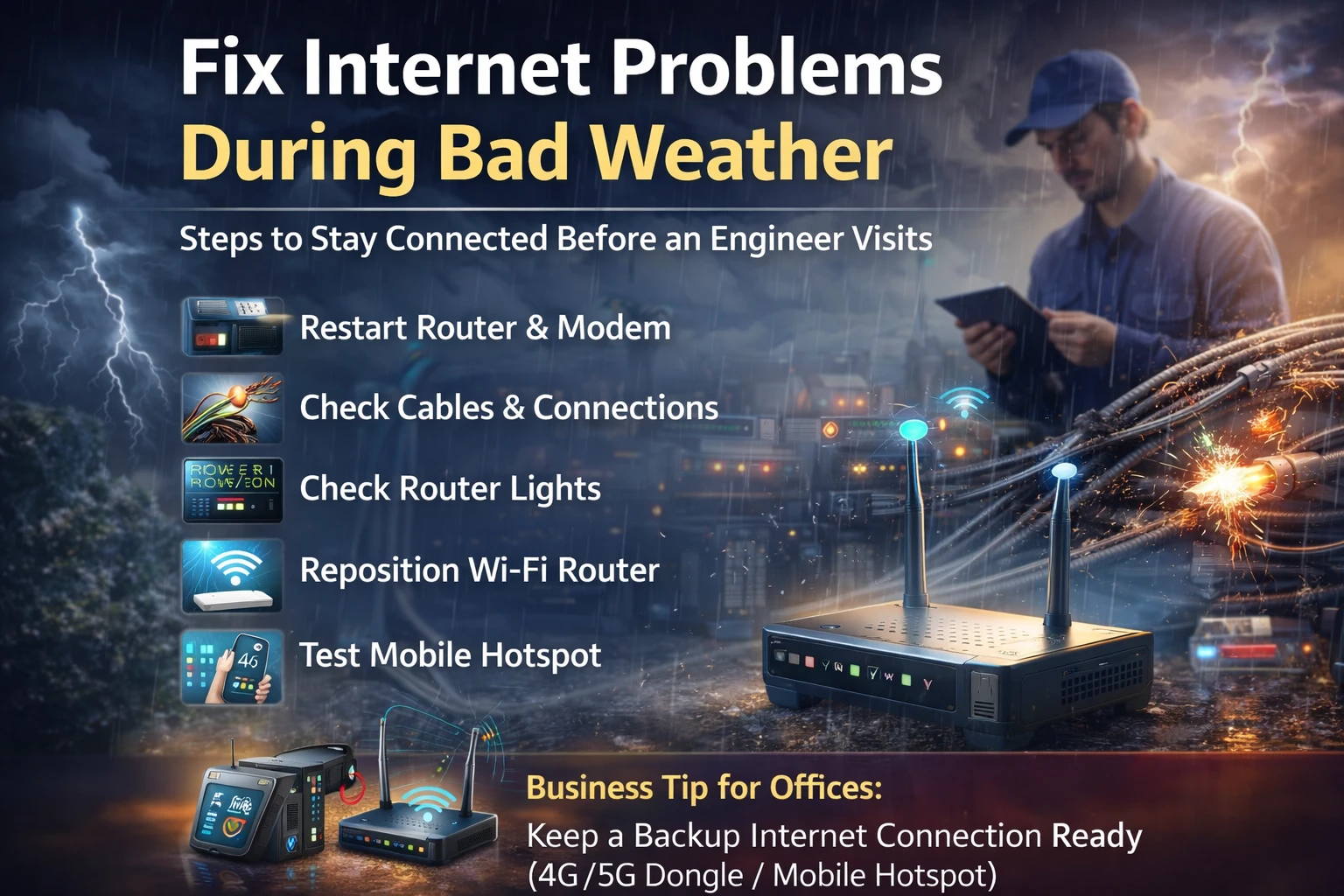
Bad weather such as heavy rain, storms, or strong winds can often disrupt your internet connection. Water-damaged cables, loose wiring, and power fluctuations are common causes of network outages during extreme weather conditions. While waiting for an internet service provider (ISP) engineer to visit, there are several troubleshooting steps you can follow to restore or stabilize your connection.
This blog explains simple and effective ways to fix internet problems during bad weather and keep your home or business online.
Introduction
A stable internet connection is essential for work, communication, and business operations. However, during bad weather, internet services can become slow or completely unavailable. Understanding basic troubleshooting techniques can help you minimize downtime and maintain productivity until professional support arrives.
1. Restart Your Router and Modem
The first and easiest step is to restart your networking devices.
-
Turn off the router and modem.
-
Wait for 30–60 seconds.
-
Turn them back on and allow them to reconnect.
This process refreshes the network connection and can resolve temporary signal or IP issues.
2. Check All Cables and Connections
Weather conditions can loosen or damage cables, especially outdoor or fiber lines.
-
Ensure the LAN and fiber cables are firmly connected.
-
Check for visible cuts, water exposure, or bent connectors.
-
If possible, move wet cables to a dry and safe position.
3. Inspect Router Indicator Lights
Most routers have LED lights that show the connection status.
-
Power Light: Should be stable and on.
-
Internet / WAN / PON Light:
-
Green or stable means the connection is active.
-
Red or blinking often indicates a line or ISP issue.
-
This can help you identify whether the problem is internal or from your service provider.
4. Reposition Your Wi-Fi Router
During storms, signal interference can increase. Place your router:
-
In the center of the room
-
Away from windows, water sources, and thick walls
-
At a higher position for better signal coverage
This can improve Wi-Fi strength and reduce connection drops.
5. Test with Mobile Hotspot
Use your smartphone’s mobile data as a temporary internet source.
-
Turn on hotspot on your phone.
-
Connect your laptop or PC to it.
If the hotspot works fine, the issue is likely with your broadband or ISP line.
6. Change DNS Settings
Sometimes internet issues are related to DNS resolution. You can manually set a public DNS on your device:
-
Primary DNS: 8.8.8.8
-
Secondary DNS: 8.8.4.4
This can improve browsing speed and website accessibility.
7. Contact Your Internet Service Provider (ISP)
If the problem continues, report it to your ISP immediately.
-
Raise a service ticket
-
Note the complaint or reference number
-
Share photos of router lights or damaged cables if requested
This helps speed up the resolution process.
Business Tip: Always Keep a Backup Connection
For offices and businesses, internet downtime can lead to lost productivity. Consider:
-
Keeping a 4G/5G mobile hotspot or dongle as a backup
-
Using a dual-WAN router that automatically switches to a secondary connection if the primary line fails
Conclusion
Bad weather can disrupt your internet, but simple troubleshooting steps can often restore basic connectivity or help you stay online temporarily. Restarting devices, checking cables, testing with a mobile hotspot, and contacting your ISP are effective ways to minimize downtime until an engineer arrives.
Being prepared with a backup internet solution ensures your work and business operations continue smoothly, even during unexpected network issues.


Comments: